Yes, you can change your public LEMOON username from your account settings on the web or in the mobile app.
Before you change your username
Your username is the unique @ handle shown on your profile. It is different from your Name, which is your display name.
Your new username must:
- Contain 3–30 characters.
- Use only letters, numbers, and underscores.
- Be available for use.
- Be entered without the
@symbol.
Review your username before saving it. After you change your username, you cannot change it again for 30 days.
Change your username on the web
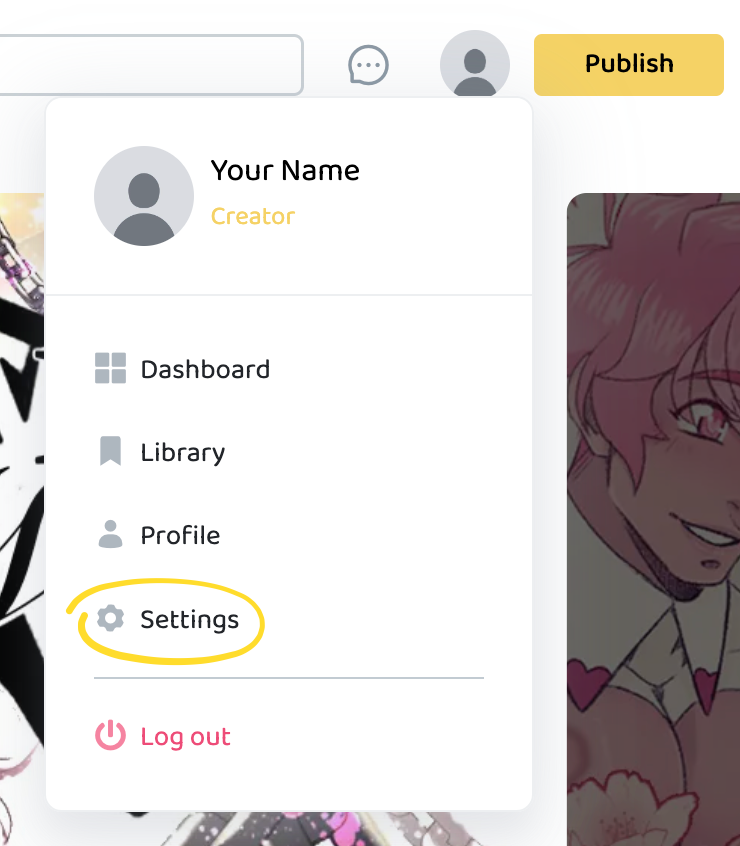
- Select your profile picture in the header.
- Select Settings.
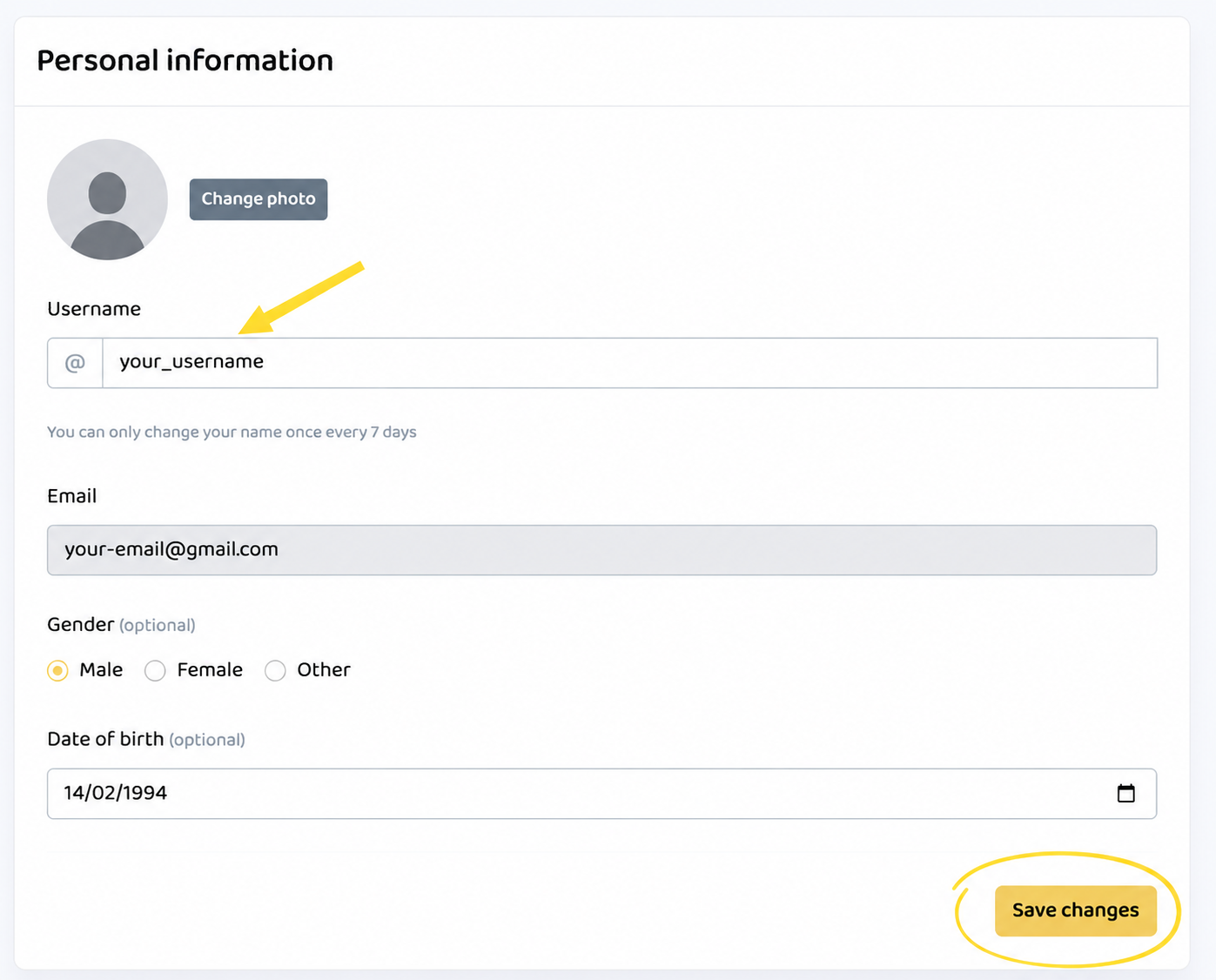
- Open Personal information.
- Enter your new username in Username.
- Select Save changes. A confirmation will appears after your username is updated.
Change your username in the mobile app
These steps are the same on iOS and Android.
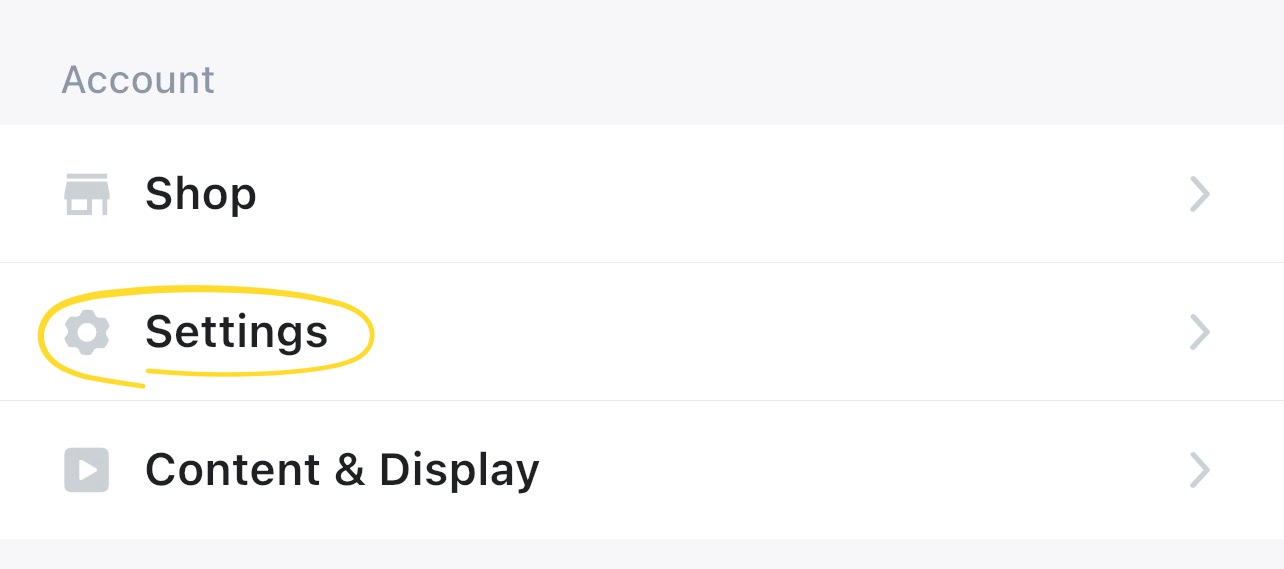
- Select Account in the bottom navigation.
- Select Settings.
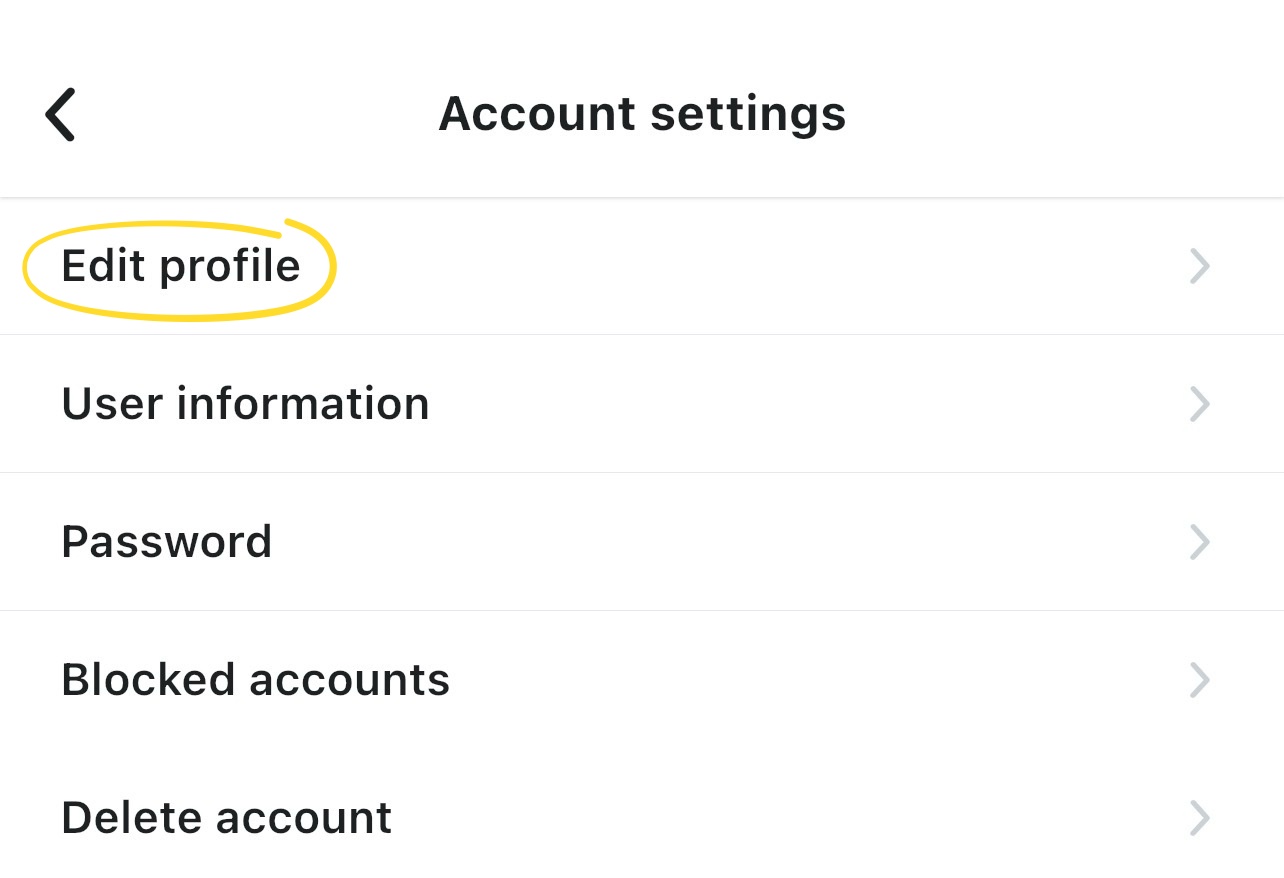
- Select Edit profile.
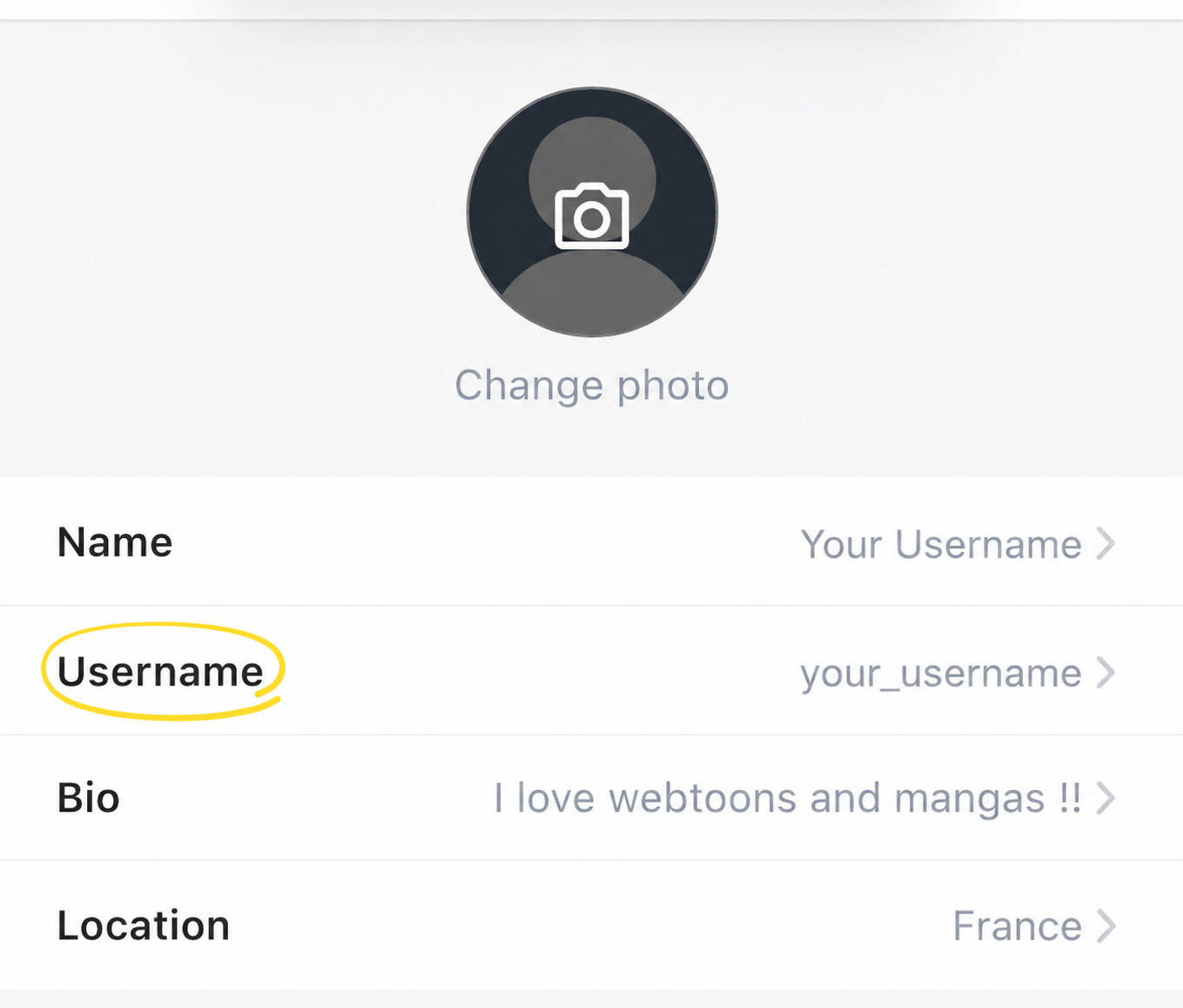
- Select Username.
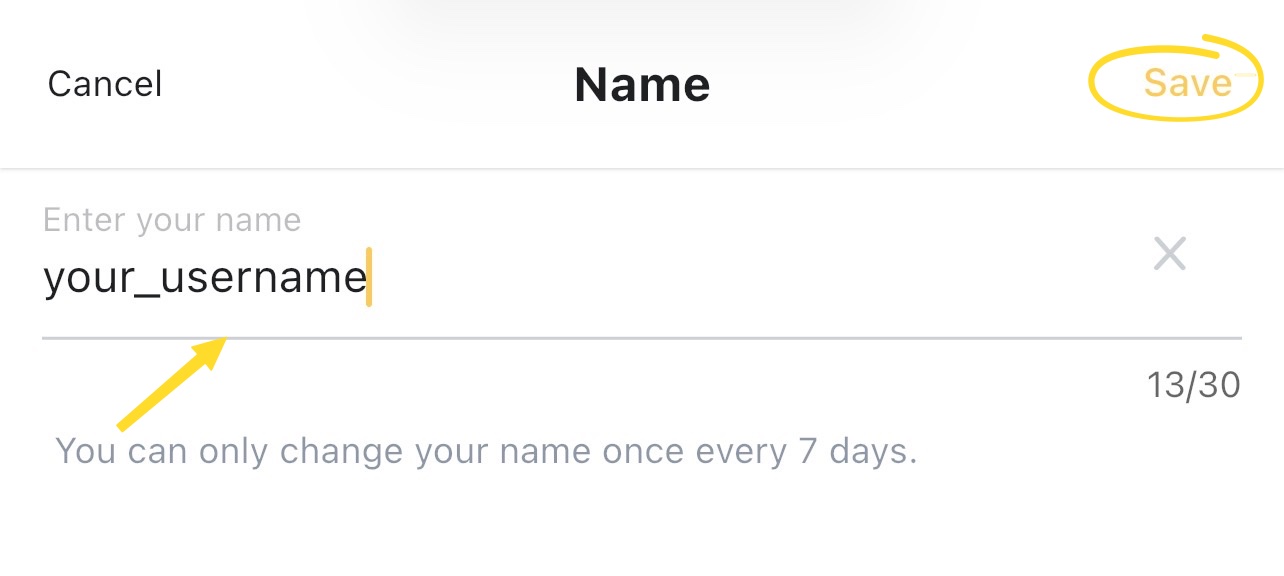
- Enter your new username.
- Select Save. It’ll displays Username updated!.